
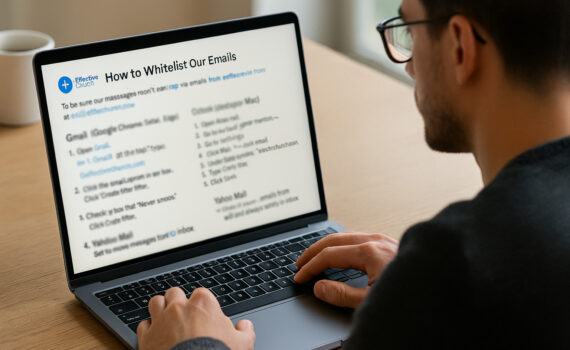
To be sure our messages don’t end up in your Spam or Junk folder, please tell your email program to trust emails from:
@effectivechurch.com
Here’s how to do that in the most common email programs and browsers:
Gmail (Google Chrome, Safari, Edge, Firefox)
- Open Gmail.
- In the search bar at the top, type:
@effectivechurch.com - Click the small down arrow in the search box.
- Click Create filter.
- Check the box that says “Never send it to Spam.”
- Click Create filter again.
Outlook (desktop or web)
- Open Outlook.
- Go to Settings (gear icon) → View all Outlook settings.
- Choose Mail → Junk email.
- Under Safe senders and domains, click Add.
- Type:
effectivechurch.com - Click Save.
Apple Mail (on Mac)
- Open Apple Mail.
- Go to Mail in the top menu → Preferences.
- Click the Rules tab.
- Click Add Rule.
- Set it to: If “From” contains “effectivechurch.com” → Move message to Inbox.
- Click OK.
Yahoo Mail
- Open Yahoo Mail.
- Click the Settings gear → More settings.
- Go to Filters → Add new filters.
- Name it “Effective Church.”
- For rule: From contains effectivechurch.com.
- Set to move messages to Inbox.
- Save.
That’s it! Once you’ve done this, emails from effectivechurch.com should always land safely in your inbox.
Post Views: 433